Darwin Ecommerce Theme - your store's header
From Spiffy Stores Knowledge Base
Uploading your logo
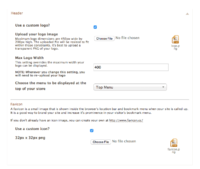
Editing areas in your store's header

You can upload your own logo in the Store Header section of your Theme editor. You simply tick the Use a logo? option, and click the Save Settings button.
The theme editor will resize the logo for you when you upload it, but you will get a much better result if you resize your logo before uploading it.
400px is the standard width that your logo will be displayed in your store, but you are able to modify this. 200px is the recommended maximum logo height, but we don't limit the actual height of your logo.
A tall thin logo will not look good in this theme, and you would do better getting a designer to come up with an alternative solution for you. If you have a square logo, there will be a large amount of blank space, so you're far better off talking with us to see what we can do to make your logo work in the theme.
Using Pixlr to create create a logo image
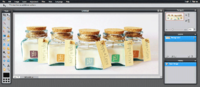
Pixlr editor

- Go to the Pixlr editor
- Click "Create a new image"
- Set the width to 400 and the height to 200, tick the "Transparent" box, and click OK. 400px is the maximum width that your logo will be displayed in your store, but you are able to modify this. 200px is the recommended maximum logo height.
- You now have your canvas to work within. You will need to explore the various tools and options.
- Open your own logo image in Pixlr using "File -> Open image" in the Pixlr menu. Select the "Wand" tool, and select only the type and any icons in your logo. There are also various other tools available so that you can select your logo without the background.
- Once you have your logo selected, you can then copy and paste it into your canvas.
- When you have pasted your logo image into the canvas, you can resize it by using the <CTRL> and <T> keys on your keyboard. Make sure you're viewing it at 100%, and see if you can get it as close as possible to the left with a small amount of space around it. You should then crop closer to the edges of your logo image using the crop tool.
- When your logo is looking gorgeous, make sure you crop the image to the edges of your logo, and then save it by choosing "File -> Save" from the Pixlr top menu.
- Choose "PNG (Transparent full quality) for your format, and save it to your computer
- When you've saved the file to your computer, upload it in your Theme Editor, tick the Use a logo? option, and click the Save Settings button.