How to configure Microsoft Outlook: Difference between revisions
From Spiffy Stores Knowledge Base
No edit summary |
|||
| Line 16: | Line 16: | ||
<table> | <table> | ||
<tr><td>Your Name:</td><td>Enter your first and last name.</td></tr> | <tr><td>Your Name:</td><td>Enter your first and last name.</td></tr> | ||
<tr><td>E-mail Address:</td><td>Enter your e-mail address.</td></tr> | <tr><td>E-mail Address:</td><td>Enter your e-mail address. if you're also using a custom domain name in your store, you can enter the email address that you want people to see when you send them email. e.g. joe@joeswidgets.com</td></tr> | ||
<tr><td>User Name:</td><td>Enter your e-mail address, again.</td></tr> | <tr><td>User Name:</td><td>Enter your e-mail address, again.</td></tr> | ||
<tr><td>Password:</td><td>Enter the password you set up for your e-mail account.</td></tr> | <tr><td>Password:</td><td>Enter the password you set up for your e-mail account.</td></tr> | ||
Revision as of 15:19, 27 April 2011
Setting Up Microsoft Outlook
To read your email messages using Microsoft Outlook, you will need to configure several Microsoft Outlook email service options. Please note that there are different versions of Outlook, so sometimes the names of menu items or fields are a little different from our instructions here.
For other email software, refer to How to set up your email program to access your Spiffy Stores mailboxes
To set up Microsoft Outlook:
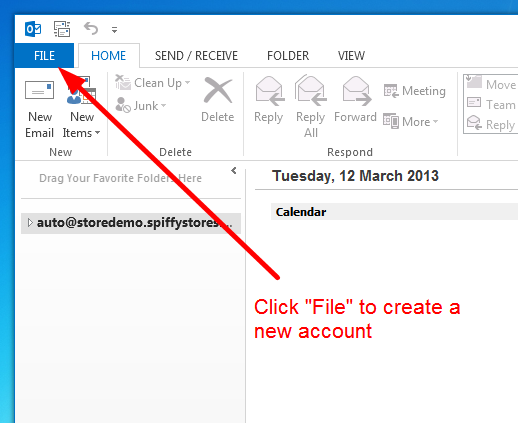
- Open Microsoft Outlook
- Select "Tools >> E-mail Accounts..." from the menu
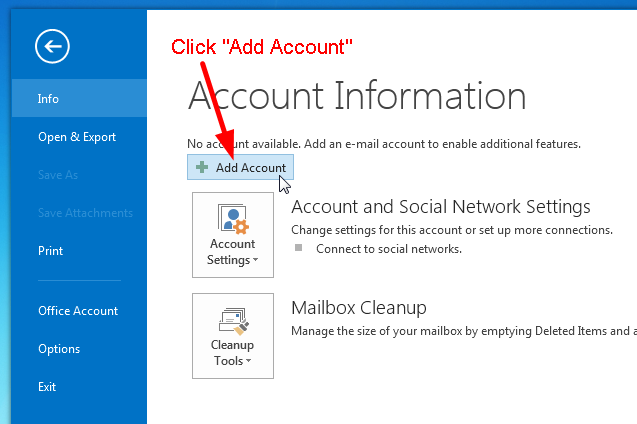
- Choose "Add a new e-mail account", and click Next
- For your server type, select "POP3" and click Next
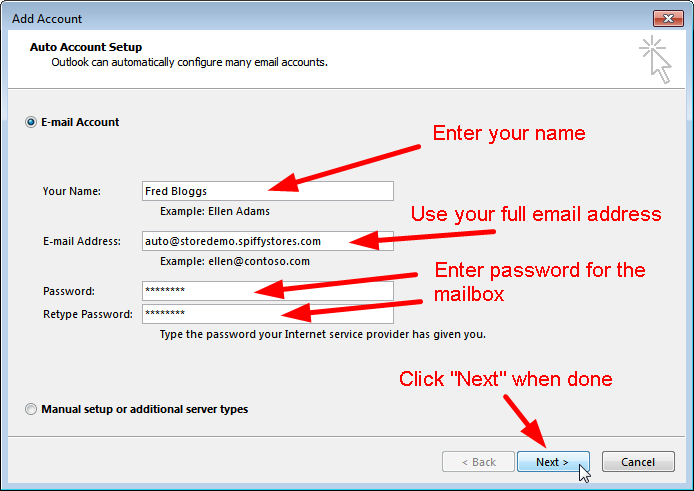
- On the Internet E-mail Settings (POP3) window, enter your information as follows:
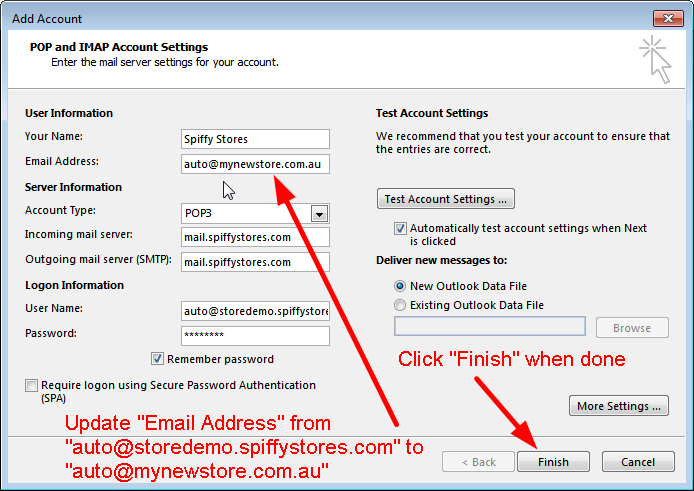
Your Name: Enter your first and last name. E-mail Address: Enter your e-mail address. if you're also using a custom domain name in your store, you can enter the email address that you want people to see when you send them email. e.g. joe@joeswidgets.com User Name: Enter your e-mail address, again. Password: Enter the password you set up for your e-mail account. Incoming mail server (POP3): Enter mail.yourstore.spiffystores.com Outgoing mail server (SMTP): Enter mail.yourstore.spiffystores.com 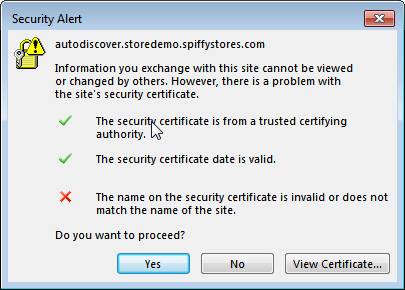
- Click "More Settings..."
- On the Internet E-mail Settings window, select the "Outgoing Server" tab
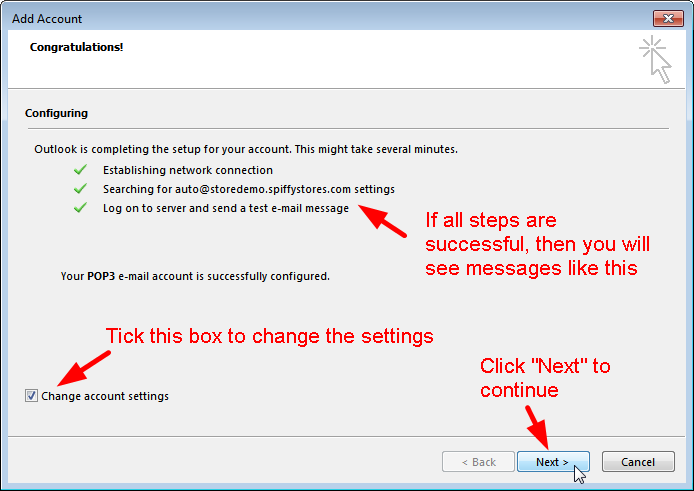
- Select "My outgoing server (SMTP) requires authentication"
- Select "Use same settings as my incoming mail server"
- Select the "Advanced" tab and change the "Outgoing server (SMTP)" port to 2525.
If you would also like to use webmail to read your messages, then you need to set the options to leave the messages on the server for a number of days.
- Click OK
- You should now be page on the "E-mail Accounts" window, so Click Next, and "Finish" to save your settings.


