Importing a Shopify store
When you decide to migrate your store to Spiffy Stores, we understand that you're keen to preserve us much as possible from your old Shopify store, and to make the migration as painless as possible.
In order to achieve a painless migration, Spiffy Stores supports the import of Shopify Product export CSV files directly. There's no need to convert or edit the exported data. We support all of the Shopify data right out of the box.
However, in some cases, the CSV export file that Shopify provides doesn't really include as much information as you'd like. For example, they do not provide enough information to allow product collections to be re-created.
In order to provide a more comprehensive migration, we are offering a custom-built migration process that will re-build your Shopify store as fully as possible in your new Spiffy Store site. This option does require a little bit of setup at the Shopify end in order for us to access your store data. Once the setup process has been completed, we'll be able to process your data for you, and use it to build your new Spiffy Store.
At the moment, this option is provided for Shopify stores upon request. Just let us know what the Access Token is for your store, and we'll do the migration for you.
There is no charge for this service.
Create a Shopify Custom App
-
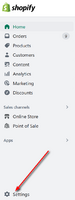 Access Shopify Settings

- 1. From your Shopify administration screen, click on the Settings link.
-
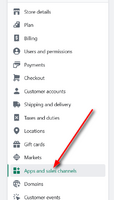 Go to "Apps and sales channels"

- 2. Within the Settings, click on the Apps and sales channels link.
-
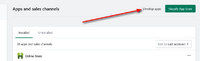 Develop apps

- 3. Click on the Develop apps menu option.
-
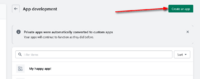 Create an app

- 4. Click on the Create an app menu option.
-
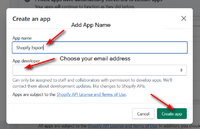 Name the app

- 5. Enter an app name. "Shopify Export" is a good choice. Also, from the available list of Shopify users, add your own email address as the app developer. Then click Create app when you're done.
-
 Configure app scopes

- 6. The app now needs to be configured. It is necessary to grant permissions on what data can be accessed. This is done by clicking on Configure Admin API scopes.
-
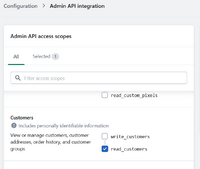 Choose scopes

- 7. The Admin API access scopes are shown as a list of available scopes. Scroll down through the list, and select the following permissions. read_customers, read_files, read_products and read_content.
-
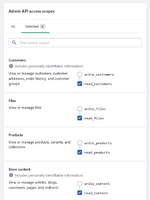 Review scopes

- 8. Review all the scopes to ensure that the correct ones have been selected.
-
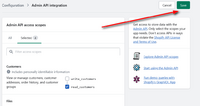 Save selected scopes

- 9. Once all the correct scopes have been selected, click Save.
-
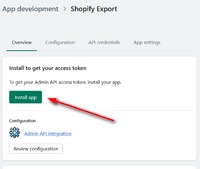 Install app

- 10. Go back to the Overview and click Install app.
-
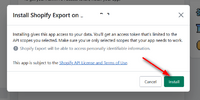 Confirm installation

- 11. Confirm that you want to install the app.
-
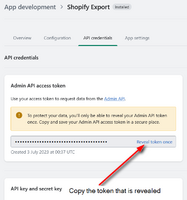 Reveal Access Token

- 12. Reveal the Admin API access token.
-
Install app
