Antiqua theme - selecting & modifying your colour scheme
The Antiqua theme comes with 15 built-in colour schemes. A scheme recolours the whole store at once - the damask band across the top of every page, the menu tabs, the side menu, headings, links, prices, buttons and the product hovers - so you don't have to change anything individually.
To change your colour scheme, open the "Theme editor" in your store's Toolbox and look for the "Colour Scheme" section. Choose a scheme from the drop-down, then save. You can try each one on the Antiqua demo store before you commit to it.
-
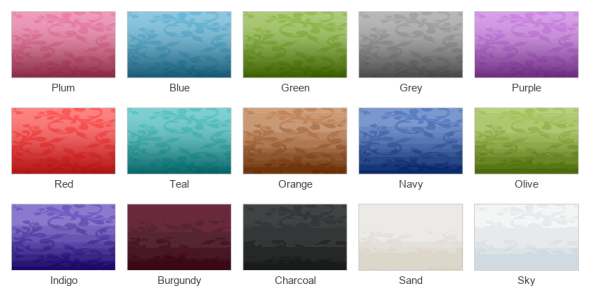 The 15 built-in colour schemes

| Scheme | What it looks like |
|---|---|
| Plum | Deep plum band with pink accents. This is the default. |
| Blue | Mid blue band with brighter cyan accents. |
| Green | Deep green band with lime accents. |
| Grey | Neutral charcoal band with soft grey accents. A good choice when your product photos carry the colour. |
| Purple | Deep violet band with orchid accents. |
| Red | Strong brick red band with a warmer red accent. |
| Teal | Deep teal band with turquoise accents. |
| Orange | Burnt orange band with terracotta accents. |
| Navy | Deep navy band with royal blue accents. |
| Olive | Olive band with yellow-green accents. |
| Indigo | Deep indigo band with violet accents. |
| Burgundy | Dark wine red band with a deep rose accent. |
| Charcoal | Near-black band with muted grey accents. |
| Sand | Pale warm beige band with dark brown text and tan accents. |
| Sky | Pale blue band with dark navy text and mid blue accents. |
About the pale schemes
Sand and Sky are deliberately light. On these two schemes the store name, the header icons and the menu button switch from white to a dark ink so they stay readable against the pale band; the slide-out menu on phones stays dark, so it matches the rest of the theme. If you have a white or very pale logo image, those two schemes will hide it - use one of the darker schemes, or the store name as text, instead.
Changing the colours yourself
The schemes are built into the theme, so the drop-down is the supported way to change your colours. If you need something outside the 15 - your own brand colour, for example - that means editing the theme's stylesheet, which is covered in Customising your theme.