DNS & Domains
From Spiffy Stores Knowledge Base
Spiffy Stores gives you a temporary xxx.spiffystores.com style domain name for your store. After you've activated your store though, you can then use your own domain name. Any domain name is compatible with Spiffy Stores as long as you're able to point it to your store using one of the options below. You can also use as many domain names as you like on your store.
If you want to register your own domain name, we recommend ordering it through Domain Hosting Shop at https://www.domainhostingshop.com.au/domain-names/
When you're placing your order, there should be a comments field in the checkout there. If you add a comment such as "This is for use in my Spiffy Store at xxxx.spiffystores.com" then the domain name will be delegated to the Spiffy Stores nameservers and you'll be ready to go!
If you'd like to find out how to take advantage of a free SSL certificate for your store, please read the article on Enabling Store-Front SSL Security.
Contents
Using an existing domain name that you've registered
There are two ways that you can use your own domain name in your Spiffy Store. The first is by re-delegating to the Spiffy Stores name servers, and the second is by setting up DNS records to point to your store.
Option 1: Redelegating to the Spiffy Stores Name Servers
Redelegating to the Spiffy Stores Name Servers is the easiest way to use your domain name with your store, and also gives you the advantage of being able to use the included email addresses that come with your Spiffy Stores plan. If you want to host your email externally though, you'll likely need to use the DNS pointing method (option 2) detailed below.
To redelegate to the Spiffy Stores Name Servers, log in to the domain management area provided to you by your domain registrar, remove any name servers that are currently there, and set your name servers to the following:
Nameserver 1:  ns20.spiffy.com.au  (IP address: 221.121.155.239)

Nameserver 2:  ns21.spiffy.com.au  (IP address: 118.127.3.147)
✻ ✻ ✻ Click here for instructions for popular domain registrars ✻ ✻ ✻
When you have redelegated your domain name to our name servers, you will need to add your domain name to the 'DNS & domains' section of your store toolbox. Simply click on the 'I would like to claim another Domain Name' link, and enter your new domain name.
After your domain name has been redelegated, you can then proceed to set up your email accounts, or set up Google Apps. More information is available in the article on Setting up your email.
Option 2: Setting up DNS records for your full domain name
If you want to host your email elsewhere, the best option is to set up DNS to point to your store using your own nameservers. If you have chosen to redelegate your domain name to our name servers, then you do not need to use a CNAME record.
If you want to set up a CNAME record, you will need to find out from your domain registrar (or current web hosting company) how you can add DNS records to your domain. They will be able to provide you with the information on how to create a CNAME record for your domain.
You will need to create a CNAME record that points to your Spiffy Store domain, for example yourstore.spiffystores.com.
It should look something like this...
name  ttl     class     rr       canonical name
www   14400   IN        CNAME    yourstore.spiffystores.com.
@     14400   IN        A        118.127.3.151
When you have set up your DNS records, you will then need to add your domain name to the 'DNS & domains' section of your store toolbox. Simply click on the 'I would like to claim another Domain Name' link, and enter your new domain name.
Please note: If you are using this option and hosting your email elsewhere, you must make sure that you remove any mailboxes that are set up in your store. If you don't notifications from your store will not get to mailboxes on your domain.
Option 3: Using a CNAME Record for a sub-domain
To have your Spiffy Store on a sub-domain, for example shop.joeswidgets.com, you will need to create a CNAME record either where your domain name is registered, or where it is currently hosted (depending on how you currently have things set up).
Your CNAME record should point to your store domain, for example yourstore.spiffystores.com.
It should look something like this...
name       ttl    class       rr       canonical name
shop       14400   IN         CNAME    yourstore.spiffystores.com.
www.shop   14400   IN         CNAME    yourstore.spiffystores.com.
When you have created your CNAME record, simply add the sub-domain you have created to the 'DNS & domains' section of your store toolbox. For the example above, the software adds records for both the "www.shop" and "shop" records.
Your Primary Domain
When you have added your domain name to your store, and you have tested it, you should set it as your primary domain. To do this, you just click the link next to your domain that says "make this my primary domain". You should also ensure you enable the "Always redirect customers here" option.
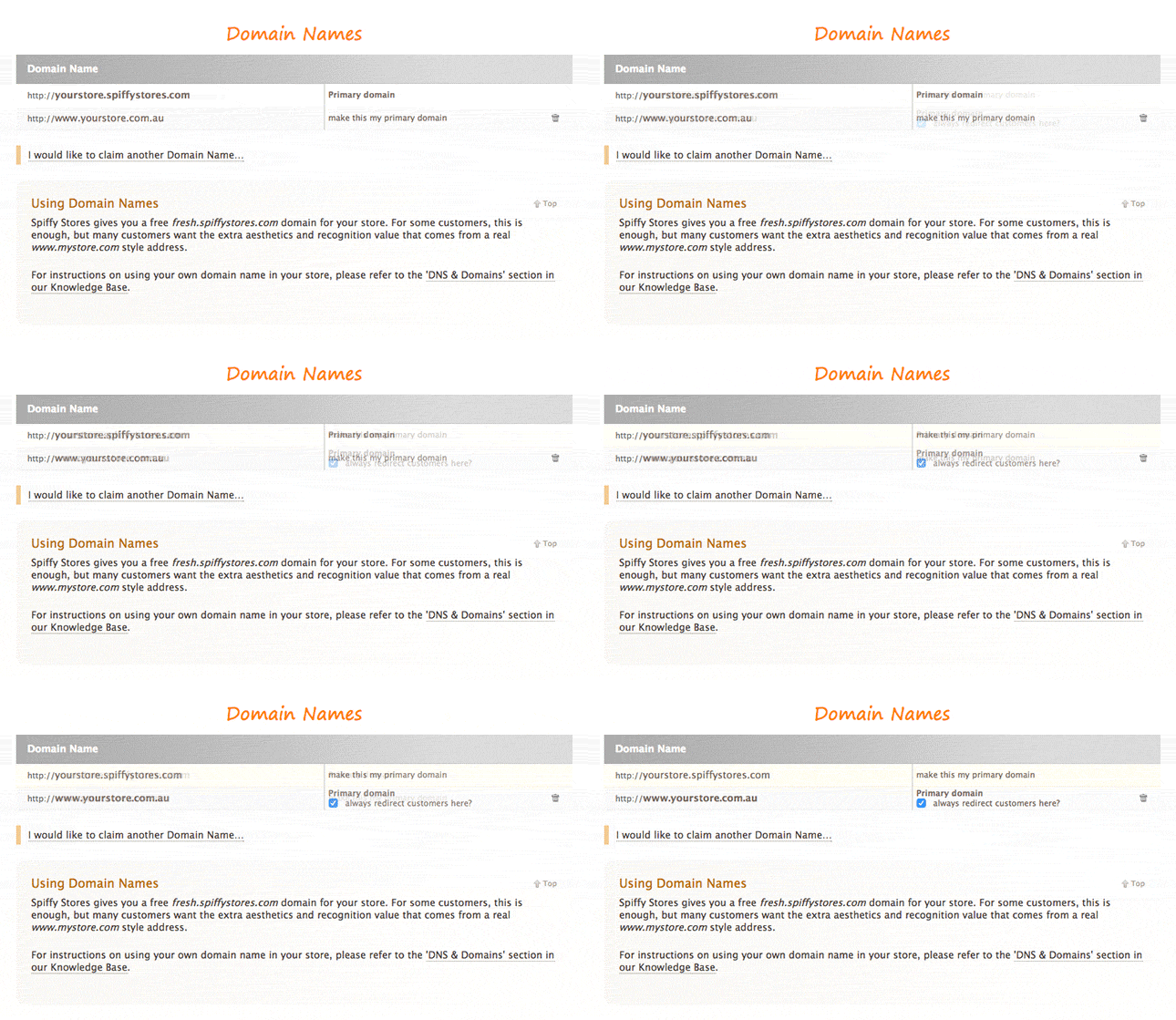
Setting your Primary Domain

When you have more than one domain for your store, you should specify one of them to be your primary domain. This distinction is used in various ways within your Spiffy Store. For instance, customers are redirected to your primary domain after they have completed a checkout.
Email Provider Verification
If you use a bulk email provider such as Brevo, Resend, Mailchimp, Klaviyo, SendGrid, Postmark, Mailgun or MailerLite, the provider will require you to verify your domain name by adding a set of DNS records before you can use it as a sending domain.
To verify one of your domain names, open the 'Domain Names' page of your store toolbox and click the Email Verification link (pencil icon) next to the domain name. Select the provider from the drop-down list and enter the verification values shown in your provider's dashboard. When you save, the DNS records required by the provider will be added to your domain automatically.
Notes
- Choosing a different provider will remove the current provider's DNS records before adding the records for the new provider.
- Selecting None and saving will remove all of the email provider verification records from your domain.
- If your domain already has an SPF record, the provider's SPF include mechanism will be merged into your existing SPF record, as a domain may only have one SPF record.
- You can also add a DMARC record (v=DMARC1; p=none;) if your domain doesn't already have one.
- Mailgun bounce (MX) records are not added, so your store email will continue to work.
Registering, transferring and renewing Domain Names
As well as claiming a domain name that you've registered elsewhere, you can register a new domain name, transfer one of your existing domain names, and renew your domain names directly from the 'Domain Names' page of your store toolbox.
Registrations, transfers and renewals are invoiced in the same way as your monthly plan fees. Once the invoice has been paid, the registration or transfer is submitted to our domain registrar on your behalf. You can view the status of your domain names at any time on the 'Domain Names' page.
Note: Domain Name transfers are not available on Trial accounts, and may not be available on all plans.
Registering a new Domain Name
Open the 'Domain Names' page of your store toolbox, click the link to register a new Domain Name, and search for the name that you'd like. Available extensions are shown along with suggested alternatives and the registration price for each one.
Once you've chosen a name, select the registration period (up to the maximum allowed for the extension) and enter the registrant contact details. Some extensions also require admin, billing or technical contacts, and Australian domain names such as .com.au require eligibility details, such as an ABN or ACN, which are submitted for approval before the registration can proceed.
You can also enable ID Protection, which hides your registrant contact details in the public whois and is available at no extra cost for many extensions, along with Auto-Renewal and a Transfer Lock, where the extension supports them. When you submit the registration, an invoice is generated and emailed to you, and the domain name is registered once the invoice is paid.
New registrations are delegated to the Spiffy Stores name servers by default, so your storefront, email and SSL certificate are configured automatically. If you'd prefer to manage your own DNS, you can set your own name servers once the domain is active.
Transferring a Domain Name
To transfer a domain name that is currently registered with another registrar, click the link to transfer a Domain Name on the 'Domain Names' page, and enter the domain name together with its authorisation code (also known as an EPP code or auth code), which you'll need to obtain from your current registrar.
Before you begin, make sure that the domain is unlocked at your current registrar and that the registrant contact email address is up to date. A domain can generally only be transferred once it has been registered for more than 60 days, and transfers may take several days to complete, depending on how quickly the losing registrar releases the domain name.
Transfers of Australian domain names such as .com.au are free of charge. For other extensions, the transfer includes a 1 year renewal of the domain name, which is included in the transfer invoice.
Renewing a Domain Name
You can renew an active domain name at any time from the 'Domain Names' page by clicking the renew action next to the domain. Renewal periods of more than one year are available for most extensions, and you can pay the renewal invoice with the credit card on file, or have an invoice emailed to you for payment.
We send renewal reminders 60, 30, 15, 7 and 1 day before your domain expires, and a renewal invoice is generated automatically around a month before expiry. Each domain also has Auto-Renewal and Transfer Lock settings that you can change from the domain's edit page.
If a domain name is not renewed, it enters a 30 day grace period after expiry, during which it can still be renewed. After the grace period, it enters a further 30 day redemption period, where restoring the domain attracts an additional redemption fee. Once the redemption period has passed, the domain name is released and may be registered by anyone.
Domains FAQ
Your connection is not private error
If you have successfully added your domain name, and you get this error, please try disabling and then re-enabling the "Store-Front SSL Enabled" on the DNS & Domains section of your store.
Warning: Potential Security Risk Ahead error
If you have successfully added your domain name, and you get this error, please try disabling and then re-enabling the "Store-Front SSL Enabled" on the DNS & Domains section of your store.
I can't see my store using my new domain name. How do I fix this?
Any change to a domain name, such as re-delegation may take 24 to 72 hours to fully propagate the changes throughout the Internet. Your ISP may be caching domain name information, so you won't be able to use your new domain name until the domain records expire and your ISP fetches a fresh copy of the records.
The information about your domain name will also be saved by your browser, your email program, your computer and sometimes even your modem. If you are adding a new domain name to your store, we recommend rebooting your computer before testing your new domain name. If that fails, you may also need to reboot your modem. If both these measures fail, then you may need to wait 24 to 72 hours before being able to access your new domain.
If you are adding a new domain to your store, you will also need to wait at least 5 to 10 minutes before the changes are added to our web servers. All web server updates are batched to minimize the impact on our stores as domain names are added and deleted through normal store maintenance.
I registered my domain name at Crazy Domains, Aust Domains, GoDaddy, Domain Names or anywhere else... how do I use it in my Spiffy Store?
Every domain name is compatible with Spiffy Stores. Most domain name providers will provide you with login details to manage your domain name. If you didn't receive them, then please contact the company you registered the domain name with for help with re-delegating your domain name.
After you've logged in to manage your domain name, you'll need to either update the name servers for your domain name or set up custom DNS records depending on what your preference is based on the options above.
If you don't know how to do this, you will need to either use the help at the company where you registered the domain name, or contact them for support to find out how to use their system to manage your domain name. If you like, you can provide them with a link to this page so they know what needs to be set up.
Click here for instructions for popular domain registrars
Should I register a .com or .com.au domain name?
On the face of it choosing a domain name for your website would appear to be a fairly straightforward process; brainstorm and select a name that identifies your business or service offering, check to see if it’s available for purchase (i.e. not already taken by someone else), and register the domain.
In reality however, choosing the best domain name requires careful thought and consideration. Aside of the branding and search engine optimisation implications of choosing a memorable and keyword rich domain name (if possible), there are also various target audience factors that you should carefully consider.
Generally speaking, a domain name consists of two or more words separated by a period (dot). The last word (e.g. '.com') is called the 'top-level domain' (TLD), while the first word or (combination of words) is referred to as the 'mid level domain'. For example, the website address www.examplecompany.com has a '.com' TLD, while the words 'examplecompany' form the 'mid level domain'. Taking this explanation a step further, you can also have country specific top level domains (referred to as ccTLDs) such as '.co.nz' or '.com.au'.
Search Engines use the top level domain of a website (among other things) to help identify the audience the website is attempting to reach. Therefore, if your business or website is targeting an audience predominantly located in New Zealand, then it makes good sense to register and use the '.co.nz' version of whatever domain name you choose.
Similarly, if your audience is located in Australia, you should register a .com.au domain.
By using a country specific top level domain (ccTLD) such as '.com.au' you are sending a strong signal to the search engines that your business or website is based in Australia, and therefore your website is more likely to appear in the search results when searched for by users located in Australia.
If on the other hand you wish to target several countries, then using a country code TLD is not the best option. Instead we suggest using a generic TLD such as '.com' or '.net' that does not have any specific country/region associated with it.
Do you provide custom DNS records?
No we do not provide custom DNS records. If you need DNS records for your domain name to be pointed to different places, then you will need to set up custom DNS records with your domain registrar or web host.
Please set up MX records to point to my mail server at xxx
Sorry, we do not provide custom DNS records. Please see above. You can opt however to use Google Apps for your email at this time, by following the instructions on this page under the title Option 2: Using Google Apps (Gmail).
Please set up an A record to point to my neighbours cousin's son's computer
Sorry, we do not provide custom DNS records. Please see above.
Please set up records for Office 365
Sorry, we do not provide custom DNS records. Please see above.
Can I change my temporary domain?
Once a store is set up, you can add or remove domains from it, but you are unable to change the temporary preview domain. If you really want to have a different preview domain, you'll need to open a new store.