How does Shipping work?
From Spiffy Stores Knowledge Base

No Shipping Required

When a customer purchases items from your store, you're generally going to need to ship these items to the customer, so you will need some way of calculating the cost of shipping so that you can add that cost to the order.
Of course, not all items need shipping and you can configure which product variations need to be shipped by clicking on the variation on the product page and bringing up the edit dialog. Just click on the "Shipping" bar to show all the shipping options, and then select "No shipping required" from the selection box.
When you're finished, click on "Save Variation".
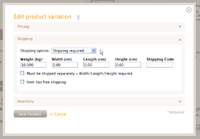
Shipping Options

Of course, normally you will want to ship your products, so make sure you understand all of the shipping options that can be configured for a product variation.
Contents
Shipping Rate Types
Weight-based Shipping Rates
The most common form of shipping rate is based upon the total weight of the items in the shopping cart.
In order to use a weight-based shipping rate, you will need to define one or more shipping rates, and specify the range of weights that to which the rate applies.
For example, if you define a weight-based shipping rate for the weight range of 0 kgs to 20 kgs, then this rate will apply if the total weight of all items in the shopping cart is greater than 0 kgs and less than or equal to 20 kgs.
Note: All weight-based shipping rate ranges are matched if the total weight of the items in the shopping cart is greater than the low value and less than or equal to the high value.
This means that you can define multiple shipping rates, each covering a specific range without any overlap or gaps in the range. For example,
 0kg -  5kg  Range 1
 5kg - 10kg  Range 2
10kg - 20kg  Range 3
As weight-based shipping rates are based upon weight, it is important that you provide an accurate weight for each of your product variations. Please also allow for any extra weight that is added in the form of packaging.
If a customer orders multiple quantities of the same product variation, then the total weight for that item equals the weight you specified for the variation times the number of items ordered.
A weight-based shipping rate can have either a fixed price or the shipping cost can be calculated automatically by using one of the provided Shipping Agents.
Spiffy Stores supports a number of Shipping Agents, such as Australia Post, New Zealand Post, Fastway Couriers and FedEx. In coming months, we will be expanding our list of supported agents.
Instructions on how to use a shipping agent to automatically calculate shipping costs for your customers in your stores' checkout can be found by following the links below.
- Using Australia Post Shipping
- Using New Zealand Post Shipping
- Using Fastway Couriers Shipping
- Using FedEx Shipping
Price-based Shipping Rates
Price-based shipping rates allow you to specify the cost of shipping based upon the total value of the shopping cart. You can use this to provide a simple set of flat rate shipping costs that are depend upon how much the customer spends.
You can provide both weight-based and price-based shipping rates. A price-based shipping rate can be used to to provide a single, flat rate shipping cost for customers who spend more than a certain amount. For smaller purchases, the standard weight-based shipping rates can apply.
You can also specify a price-based shipping rate of $0.00, so that you can offer free shipping to customers who spend more than a certain amount.
When a price-based shipping rate is found for an order, it takes precedence over any other weight-based shipping rates that may apply.
Note: All price-based shipping rate ranges are matched if the total price of the items in the shopping cart is greater than or equal to the low value and less than the high value.
Shipping Code-based Shipping Rates
The final type of shipping rate is the Shipping Code-based rate.
This type of shipping rate allows you to define a flat-rate shipping cost and to assign that rate to a shipping code. The shipping code is a 10 character sequence of alphanumeric characters that uniquely identifies that shipping rate.

Defining a Product Shipping Code

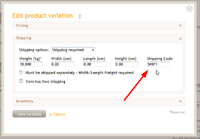
Defining a Variation Shipping Code

In order to use this type of shipping rate, you will need to specify the shipping code in the shipping options for each variation or in the product that will use this shipping rate.
You can define a shipping code in one of three ways:
- A product can have a shipping code. This means that all variations have the same shipping code. When you add a new variation, it automatically inherits the product shipping code.
- A variation can have a shipping code. If you define a shipping code for a variation, it will be used instead of the product variation code. If you define a product shipping code, you don't need to configure each variation to use the same shipping code. This happens automatically.
- A collection can have one or more shipping codes. If the product belongs to a collection that has a shipping code or codes, then those codes are used to select the appropriate shipping rate or rates that are presented at checkout.
You can use this type of rate to provide custom shipping rates for special products that don't fall into the standard weight-based or price-based shipping rate categories.
For example, gift vouchers or products which need special handling can use a shipping code-based shipping rate rather than the standard rates that apply to all other products in the store.
Note: If a product variation is defined using a shipping code-based rate, then that shipping rate must exist, otherwise the customer will be unable to purchase the item. If you define a shipping code, make sure you have created a shipping rate using this code for every country that you are shipping to.
Creating Shipping Code Shipping Rates
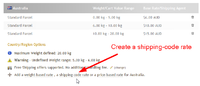
Create a Shipping Code rate

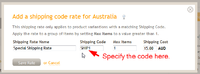
Add the Shipping Code rate

For every country, make sure you create a shipping code rate by clicking on the shipping-code rate link to add new shipping rates.
For each new shipping-code rate, use the same shipping code that you have defined in your products and/or variations. The code must match in order for it to be used when calculating the shipping rate for that product variation.
Note: In order to use Shipping Code-based shipping rates, you will need to enable Advanced Shipping Options under "Your Settings" in the Advanced Configuration section.
Collection-based Shipping Codes
In addition to assigning shipping codes directly to products and variations, you can also assign shipping codes to collections. When a product belongs to one or more collections that have shipping codes, those codes are used to determine applicable shipping rates at checkout.
A collection can have multiple shipping codes assigned to it, allowing a single collection to map to several different shipping rate groups. This is useful when you have a collection that contains products requiring different types of shipping (e.g., standard, fragile or hazardous handling).
A product may also belong to multiple collections, each with their own set of shipping codes.
Note: If a product has a direct shipping code assigned (either on the product itself or on a specific variation), that direct code takes precedence over any collection-based codes.
Assigning Shipping Codes to Collections
To assign shipping codes to a collection:
- Go to Collections
- Click on the collection you want to edit
- In the Shipping Codes sidebar section, enter one or more shipping codes (comma-separated)
- Save the update
Each shipping code must have a corresponding Shipping Code-based shipping rate defined for the countries you ship to.
How Collection Codes Affect Checkout
When a customer checks out with items from collections that have shipping codes, the shipping rates are organised into separate groups. Each group corresponds to a unique shipping code, and the customer must select a rate from each group before completing their purchase.
This ensures that items requiring different shipping treatments (e.g., fragile vs. standard) can be shipped using appropriate methods, and may result in separate parcels being created for each code group at order placement.
Global Shipping Rates
A Global Shipping Rate is a special type of shipping rate that applies to all items in the cart, regardless of any shipping codes assigned to products or collections.
To create a global shipping rate:
- Go to Preferences > Shipping & Handling
- Create a new weight-based or price-based shipping rate as normal
- Check the Global option on the rate
- Save the rate
Global rates appear in the Shipping Options group alongside standard weight-based and price-based rates.
How Global Rates Work at Checkout
When a customer selects a global rate (such as Local Pickup with a $0.00 charge), the following behaviour applies:
- The selected global rate is used for all items in the cart
- All shipping code-based rate groups are disabled and their selections are cleared
- The customer is not required to select individual rates for each shipping code group
- Only the global rate's cost is included in the shipping total
This is useful for scenarios such as:
- Local pickup where the customer collects all items from a single location
- Local delivery where the customer can pay for delivery in a local area
- Free shipping promotions that override all code-based shipping charges
- Flat-rate shipping that applies uniformly regardless of product type
If the customer later selects a non-global rate from the general group, the shipping code groups are re-enabled and restored to their previous selections (single-rate groups are auto-selected and disabled; multi-rate groups show the customer's last selection).
Important Notes
- Global rates follow the same eligibility rules as standard weight-based and price-based rates (destination, weight, cart total)
- A global rate is identified by the Global flag in the shipping rate settings
- Only one global rate can be selected at a time, as with all radio button groups
- If no global rate is selected, shipping code groups behave normally and each group's selected rate contributes to the total shipping cost